Free plugin · Adobe Illustrator · CorelDRAW

Send artwork from Illustrator and CorelDRAW
to Aksorn3D in one click

Aksorn3D Send is a panel for Adobe Illustrator and CorelDRAW made for sign shops and designers. Select text or a logo, pick a sign style and press send — Aksorn3D opens in your browser with the artwork at its real size. No more exporting SVG and uploading it by hand.

  • Any font on your computer — text is converted to outlines, so Thai vowels and tone marks stay exactly as on screen
  • Real size in millimetres from your document
  • Your original document is never changed — the panel works on a temporary copy
Free · no login

How to install

Copy one line, paste it, press Enter — no security warnings, nothing to unzip, and the same line updates the plugin.

🪟 CorelDRAW

CorelDRAW X7 or later · installs CorelDRAW only (skip it if you already ran the Windows command)

  1. Save your work and close CorelDRAW
  2. Press Copy
    powershell -NoProfile -Command "irm https://aksorn3d.com/api/plugin/install-coreldraw.ps1 | iex"
  3. Press Windows + R, paste (Ctrl + V) and press Enter
  4. When Windows asks for administrator permission, press YesThe files go into CorelDRAW’s folder in Program Files · every CorelDRAW version on the computer gets the panel
  5. Wait for “installed”, then press Enter to close the window
  6. Open CorelDRAW → Window → Dockers → Aksorn3D Send
Download for CorelDRAWWindows · zip

🍎 macOS

Adobe Illustrator

  1. Press Copy
    curl -fsSL https://aksorn3d.com/api/plugin/install.sh | bash
  2. Open TerminalPress Command + Space, type Terminal, press Enter
  3. Paste (Command + V) and press Enter, wait for “installed”
  4. Close and reopen Illustrator → Window → Extensions → Aksorn3D Send
Download for IllustratorMac OS · zip

The command downloads the installer from aksorn3d.com, checks it matches the original (sha256), then does only two things: copies the com.aksorn3d.send folder into your user extensions folder and turns on Adobe’s PlayerDebugMode so Illustrator loads panels that are not from the Adobe store · no admin password needed

Illustrator alternative: download the zip and double-click the installer

🍎 macOS

  1. Double-click the downloaded zip to get the Aksorn3D Send folder
  2. Double-click ติดตั้ง-Mac.command (Install-Mac)If macOS says it cannot verify the developer, click Done (not Move to Trash) → System Settings → Privacy & Security → scroll to the file name → Open Anyway, enter your password → double-click the file again
  3. Wait for “installed”, then press Enter
  4. Reopen Illustrator → Window → Extensions → Aksorn3D Send

🪟 Windows

  1. Right-click the zip → Extract All (do not run it from inside the zip)
  2. Double-click ติดตั้ง-Windows.bat (Install-Windows) in the extracted folderIf a blue “Windows protected your PC” screen appears, click More info → Run anyway
  3. Wait for “installed”, then press any key
  4. Reopen Illustrator → Window → Extensions → Aksorn3D Send

With this method macOS/Windows show security warnings because the installer is not signed with a paid Apple/Microsoft developer certificate. The installer does only two things: copies the com.aksorn3d.send folder into your user extensions folder, and turns on Adobe’s PlayerDebugMode so Illustrator loads panels that are not from the Adobe store.

CorelDRAW alternative: download the zip
  1. ⬇ Download the CorelDRAW zip
  2. Right-click the zip → Extract All (do not run it from inside the zip)
  3. Close CorelDRAW, then double-click ติดตั้ง-CorelDRAW.bat (Install-CorelDRAW)If a blue “Windows protected your PC” screen appears, press More info → Run anyway, then Yes when asked for administrator permission
  4. Open CorelDRAW → Window → Dockers → Aksorn3D Send

The installer only copies the Aksorn3DSend folder into CorelDRAW’s Programs64\Addons and changes nothing else · to uninstall, close CorelDRAW and delete that folder

No more exporting

Make 3D letters straight from Illustrator and CorelDRAW files

Design in the program you know, select the artwork and send it to Aksorn3D — no saving, no SVG export, no manual upload, and no more exported files at the wrong size.

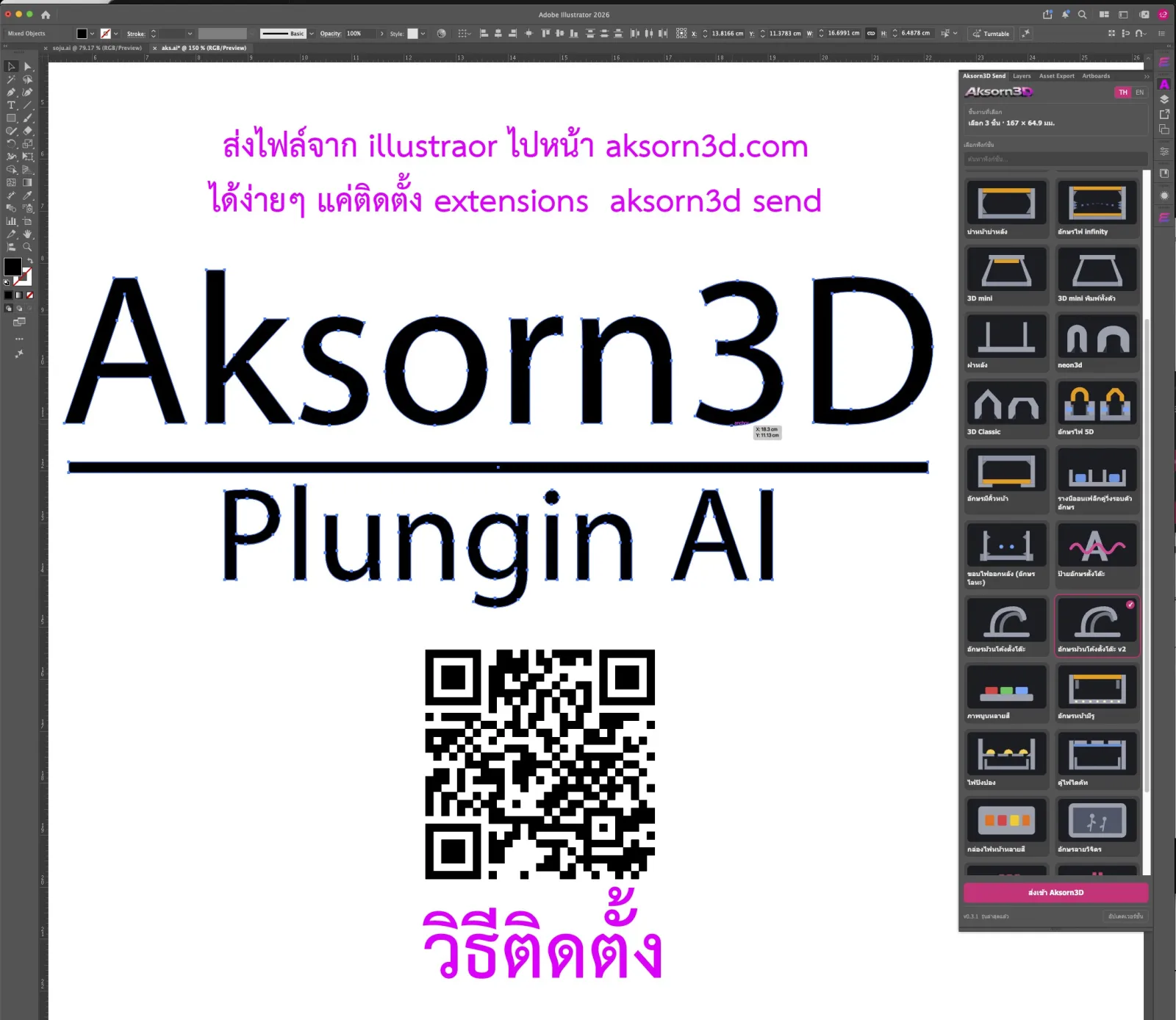
Aksorn3D Send plugin panel in Adobe Illustrator 2026 with the Aksorn3D text selected, 3 items at 167 × 64.9 mm, a list of 3D sign styles and the Send to Aksorn3D button
Aksorn3D Send in Adobe Illustrator — the panel reads the real size of the selection (167 × 64.9 mm), you pick a sign style and press “Send to Aksorn3D”, and the web app opens with the artwork at the same size.

The old problem: exported at the wrong size

SVG files exported from Illustrator store sizes at 72 units per inch, while browsers and many programs read SVG at 96 per inch — a 100 mm design opens at about 75 mm. CorelDRAW versions write units differently, so the size has to be fixed every time, and text that was not converted to curves breaks Thai fonts.

With the plugin: real size in millimetres

The plugin reads your selection and converts text to outlines itself, sends the real size in millimetres from your document, and keeps each item’s colour for multi-colour styles. Every font on your computer works, Thai vowels and tone marks stay exactly as on screen, and your original file is never changed.

StepExporting files the old waySending with Aksorn3D Send
TextCreate Outlines / Convert to Curves by hand firstConverted automatically, original file unchanged
SavingSave As / Export SVG after every editNo saving — select and send
SizeMay shrink or grow, height must be set again on the webReal size in millimetres from your document
UploadFind the file and drag it to the webThe browser opens the app with the artwork loaded
ChangesExport and upload everything againEdit in your program and send again

Three steps

Open the panel from Window → Extensions → Aksorn3D Send (Illustrator) or Window → Dockers → Aksorn3D Send (CorelDRAW), then:

1

Select artwork

Select text, a logo or shapes in your document. The panel shows the count and real size in millimetres, and warns about anything the web cannot use.

2

Choose a style

Search and pick a sign style such as 5D lit letters, curved surface letters or a multi-color front lightbox. New web styles appear automatically.

3

Send to Aksorn3D

Your browser opens the app with the artwork and style loaded. Adjust settings, check the 3D model and export files as usual.

Why sign shops use it

No export or upload

Skip exporting SVG, setting units and dragging files to the web. Edit in Illustrator or CorelDRAW and send again right away.

Any font

Use every font your shop owns — the panel outlines text before sending, so the web does not need the font.

Client artwork stays private

Sent files are kept on the server for 30 minutes so the web can open them, then deleted. Designs are never stored permanently.

Updating

When a new version is out, the text at the bottom of the panel turns pink and the “Update version” button brings you here.

FAQ

Is it free? Do I need to log in?

Free, and there is no login in the panel. Sending does not use credits — you log in and use credits on the web only when downloading 3D files, as before.

SVG exported from Illustrator is the wrong size — how do I fix it?

Illustrator stores SVG sizes at 72 units per inch while browsers and many programs read SVG at 96 per inch, so a 100 mm design opens at about 75 mm. Send the artwork with Aksorn3D Send instead — the real size in millimetres comes from your document, no export needed. See the comparison

Do I need to Create Outlines or Convert to Curves before sending?

No. The panel converts text to outlines itself on a temporary copy, your original file is unchanged, and every font on your computer works.

Illustrator: I installed it but cannot see the menu

Quit Illustrator completely and open it again (panels load only at startup), and check you have Illustrator CC 2019 or later. If it is still missing, run the install command again and contact LINE @ndssoft.

What is sent? Are colours and strokes included?

Shapes with a fill are sent (text is outlined first), with their colours for multi-colour styles. Stroke-only items, raster images and hidden items are skipped — the panel warns you before sending.

Thai vowels show as dotted circles

The text uses the Latin paragraph composer, which some fonts cannot shape Thai with. What you see is what gets sent, so switch the composer in the Paragraph panel menu to a Middle Eastern & South Asian composer — the panel warns when it finds this.

Is client artwork stored?

Sent files stay in server memory for 30 minutes so the web can open them (you can refresh the page in that time), then they are deleted. Nothing is saved to the database except usage counts.

Does it work with CorelDRAW?

Yes — CorelDRAW X7 or later on Windows. Install it with the CorelDRAW command, then open Window → Dockers → Aksorn3D Send.

CorelDRAW: installed but the panel is not in Dockers

Quit CorelDRAW completely and open it again. Check you have X7 or later and .NET Framework 4.8 (the install command checks this and opens the download page if it is missing). If it is still missing, contact LINE @ndssoft.